GAMS Quick Start Guide
This page serves as a first help install the General Algebraic Modelling System (GAMS) on your machine and setting up GENeSYS-MOD.gms in a way to start your first model run.
GAMS Installation
This page refers to the GAMS version of GENeSYS-MOD. Therefore, the first step is to install GAMS on your machine. GAMS is an algebraic modeling language designed to solve mathematical optimization and equilibrium problems. The language makes it possible to write as close as possible to the respective mathematical equivalents and saves the user the learning of a special syntax and programming. Compared to other classic programming languages, learning GAMS is easily possible if you have the mathematical formulation on hand. In general, GAMS consists of a compiler and a multitude of different solution algorithms, which can be used depending on the modelling. GAMS also comed with its own development engine / user interface (GAMS Studio).
The most recent version of GAMS can be retrieved from their website (www.gams.com). It is available for MS Windows (32, 64 Bit), MacOS, and Linux (both 64 Bit). GAMS has a free licensed version, but it is limited to some solvers and, more importantly, to only a small number of variables and elements. As GENeSYS-MOD is focused on large-scale energy system models, you will likely need to obtain a license for GAMS or use the Julia-based version. Solver-side, the use of open source solvers is possible, but larger and more complex model setups will require a commercial solver as well.
Note
GENeSYS-MOD.gms uses the command-line tool gdxxrw.exe, which is provided by GAMS, to read and convert Excel-files (.xls and .xlsx) to GAMS Data Exchange (.gdx) files. Unfortunately, this command-line tool is only working a DOS/Windows environment and cannot be used in Unix systems (Linux/Mac) without the usage of a emulation software (e.g., Wine for Linux). Therefore, you either need to run GENeSYS-MOD.gms under a Windows environment, or you need to transform Excel-files to .gdx-files with other tools (e.g., with the exceltogdx-package for python).
For a general documentation of GAMS, as well as GAMS Studio and their features, please refer to the GAMS website.
The Middle-Earth test data set
GENeSYS-MOD.gms includes a test data set, featuring several regions of Middle-Earth. The test data set can be used to validate the proper working of the downloaded version of GENeSYS-MOD, play around with some basic model settings, and get familiar with the syntax and input and output formats.
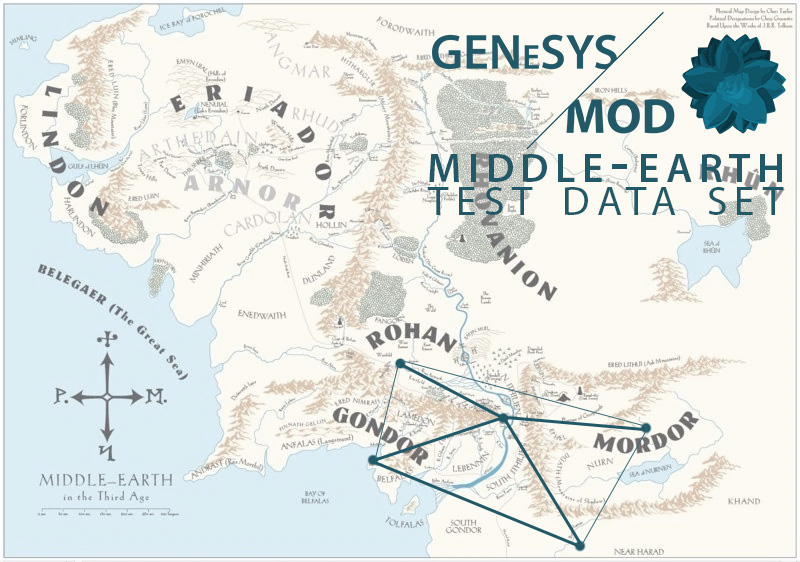
The Middle-Earth test data set includes the countries of Rohan, Gondor, Mordor, and Harad, as well as the city-state Dol Amroth.
Running GENeSYS-MOD.gms
After downloading and installing GAMS, open GAMS Studio. Via File -> Open, navigate to the folder where you downloaded GENeSYS-MOD.gms to and open the file genesysmod_a_middleearth_example.gms.
The following screenshot shows how the open file should look like in GAMS Studio:
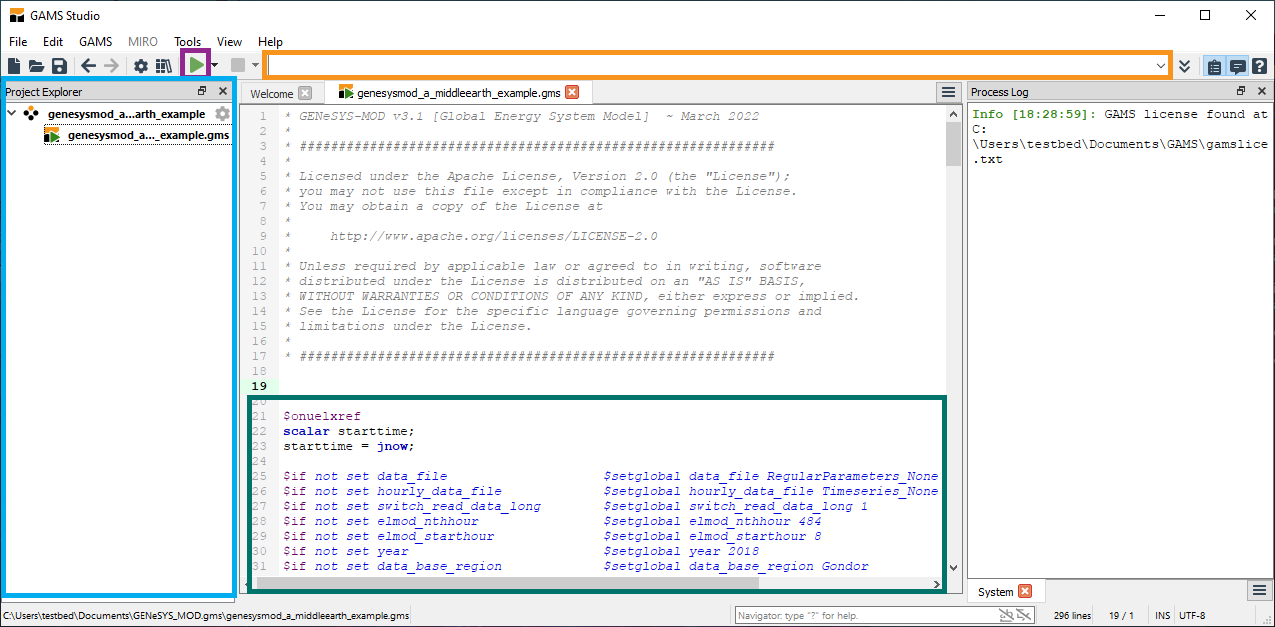
In the blue area of the screen, you can find the Project Explorer which lists your open files and GAMS projects. The green area is the actual code of GENeSYS-MOD with the switches that serve as settings for the model run. The orange area is the command line: these arguments will be passed onto the GAMS run. This is highly useful for a quick change in settings and result dumping in a .gdx file. The purple area then marks the “Play”-button of GAMS, which will start the model solve.
After pressing “Play” (either via the button or by pressing F9 on the keyboard), the model should start solving and quickly come to a solution for the basic example.
Note
We recommend you to change the command-line parameters of the GAMS run so that you can have a quick and easy access to all model data, which is especially useful for quick debugging in case of problems.
For this, we recommend to always set the options -gdx= and -gdxcompress=1. -gdx=NAME outputs a NAME.gdx file including all model parameters, variables, sets, and equations after the model run, while -gdxcompress=1 ensures efficient data compression of the resulting .gdx file(as they can get quite large).
Quick settings via switches
You can change the behavior of GENeSYS-MOD.gms via the switches provided in the main genesysmod.gms file. Examples of this include a change in result output format (e.g. either .csv files, .gdx files, or .xls files), in time resolution of the model (e.g. from 36 time steps to 120), or in terms of functionality (e.g. by enabling certain features and modules, such as ramping constraints). A full guide on all switches can be found in the specific page on Switches.
Some noteworthy examples to play around with:
Switch |
Default value |
Possible values |
Explanation |
|---|---|---|---|
elmod_nthhour |
484 |
1 - 1924 |
Sampling interval of timeseries reduction algorithm. 1 will give full hourly results (sampling each 1st hour). Common resolutions are 25, 73, 122, 244, 484. |
solver |
cplex |
cplex, gurobi, highs, glpk, … |
Solver to use for the model (LP) solve |
switch_test_data_load |
0 |
0, 1 |
If enabled, GAMS will only load the data without solving. |
switch_write_output |
gdx |
csv, gdx, xls |
Selection of output file formats. |
switch_aggregate_region |
0 |
0, 1 |
If enabled, all regions will be aggregated into one single region. |
Result analysis
Once you have started the computation, depending on your solver and hardware, the default settings should produce results in about 3-8 minutes. If everything worked properly, GAMS should display a Status: Normal completion with your solver reporting LP status: optimal. If this is not the case, please check and verify your downloaded files (both in terms of model, but also in terms of data).
In the case that you got the Normal completion in GAMS, you should expect the following results:
Name |
Variable |
Value |
|---|---|---|
Objective value |
z |
37531059.022 |
Installed Capacity |
TotalCapacityAnnual(‘2040’,’P_Coal_Hardcoal’,’Gondor’) |
4.1811 |
Generation |
ProductionByTechnologyAnnual(‘2050’,’P_PV_Utility_Opt’,’Power’,’Rohan’) |
270.615 |
Net Exports |
NetTradeAnnual(‘2030’,’Power’,’DolAmroth’) |
53.0492 |
You can compare these values by either using the generated .gdx file (see above), or by using the results in .csv or .xlsx format. We are currently working on some ready-to-use dashboards in Julia to visualize the results. Otherwise, Tableau Desktop: Public Edition is also a great tool to use for visualizations. A guide on how to generate some visualizations for GENeSYS-MOD with Tableau Public will be added to this readthedocs in the near future.
Further information
For a full list of options (frequently called switches in GENeSYS-MOD), please refer to the full user guide. For more information on the inputs and outputs of GENeSYS-MOD, as well as the structure, please refer to the mathematical formulation.